
Linux for Beginners: The Ultimate Guide
Last Updated: February 2026
Why 90% of the Cloud runs on Linux (and why you should learn it).
Introduction: The Invisible Powerhouse
If you use an Android phone, browse Facebook, or watch Netflix, you are using Linux. While Windows is great for your laptop, Linux rules the Internet.
- 100% of the world’s Supercomputers run Linux.
- 90% of the Cloud (AWS/Azure) runs Linux.
- Android is built on Linux.
In this guide, I will take you from “What is a Terminal?” to writing your first Automation Script.
1. What is Linux? (The Definition)
Linux is a free, open-source Operating System (OS). Unlike Windows, which is owned by Microsoft, Linux belongs to nobody and everybody. It was created by Linus Torvalds in 1991.
Why is it so popular? Imagine you buy a car, but the hood is welded shut. You can’t fix the engine; you can only drive it. That is Windows. Now imagine a car where you can open the hood, change the engine, and even paint it pink. That is Linux.
- It gives you Full Control.
- It is Stable (Servers run for years without restarting).
- It is Secure (Permissions are strict by default).
Linux is widely used in:
- Servers and cloud platforms (AWS, Azure, Google Cloud)
- Desktop computers and laptops
- Mobile devices (Android is based on Linux)
- Embedded systems and IoT devices
Because Linux is reliable and customizable, many companies trust it for real-world applications.
2. The Linux Architecture (How it Works)
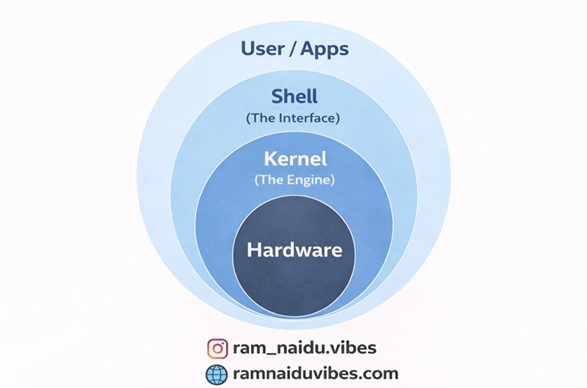
This is the most important concept for interviews.
Think of Linux like a Car:
- Hardware: The wheels, chassis, and metal. (CPU, RAM).
- Kernel (The Engine): This is the core. It talks to the hardware. You never touch the Kernel directly.
- Shell (The Dashboard): This is the interface. You press a button (type a command), and the Shell tells the Kernel what to do.
- Applications: The AC, Radio, GPS. (Firefox, VS Code).
Trainer’s Note: When you type ls, you are talking to the Shell, which talks to the Kernel, which asks the Hardware for data.
3. The File System: Where is the C: Drive?
If you are coming from Windows, you might be confused. “Where is my C: Drive?” Linux doesn’t have drives. It has a Tree.
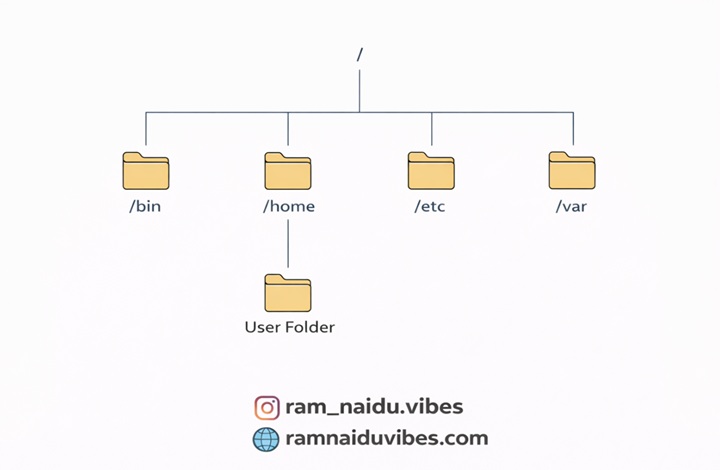
- The Root (/): Everything starts here. It is the top of the tree (or the root, upside down).
- /home: This is like your “My Documents” folder.
- /bin: This holds the commands (like ls, mkdir).
- /etc: This holds configuration files.
The Golden Rule: In Linux, “Everything is a file.” Even your mouse and keyboard are treated as files!
4. Linux Commands for Beginners
You don’t need to memorize 1000 commands. You just need these daily essentials.
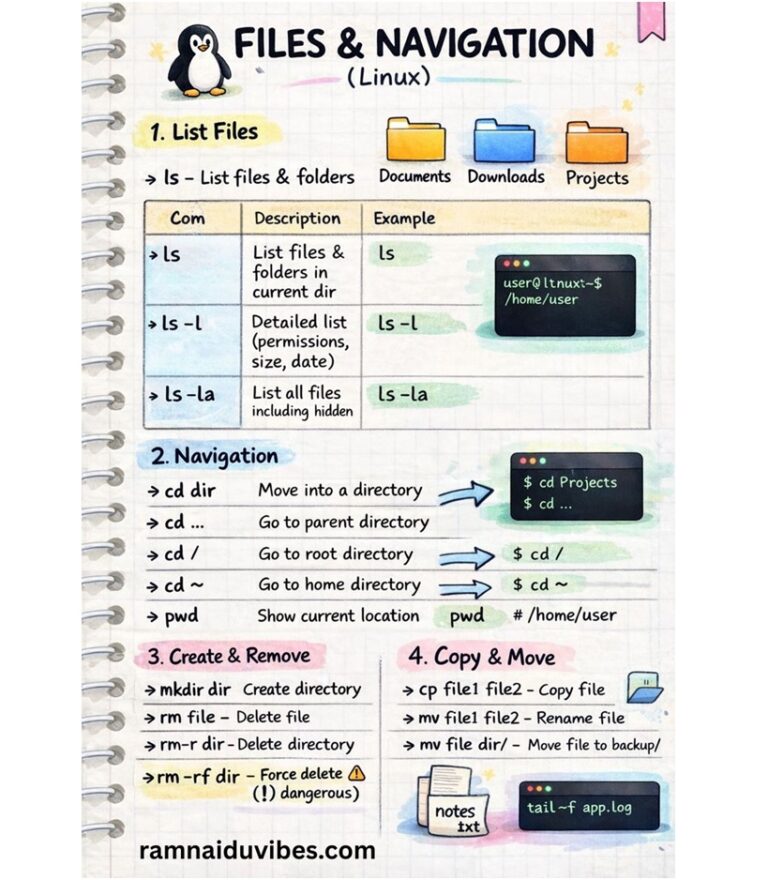
Navigation
- pwd: Print Working Directory (Where am I?).
- ls -ltr: List files with details (Owner, Size, Date).
- cd folder: Change directory (Move into a folder).
- cd ..: Go back one step.
File Management
- mkdir demo: Make a directory (folder) named ‘demo’.
- touch notes.txt: Create an empty file.
- cat notes.txt: Read the file content.
- rm notes.txt: Remove (delete) a file. (Be careful!)
System Health (The Doctor’s Toolkit)
- top: Shows real-time CPU & Memory usage (Like Task Manager).
- df -h: Disk Filesystem (Shows free hard disk space).
- free -g: Shows RAM usage in Gigabytes.
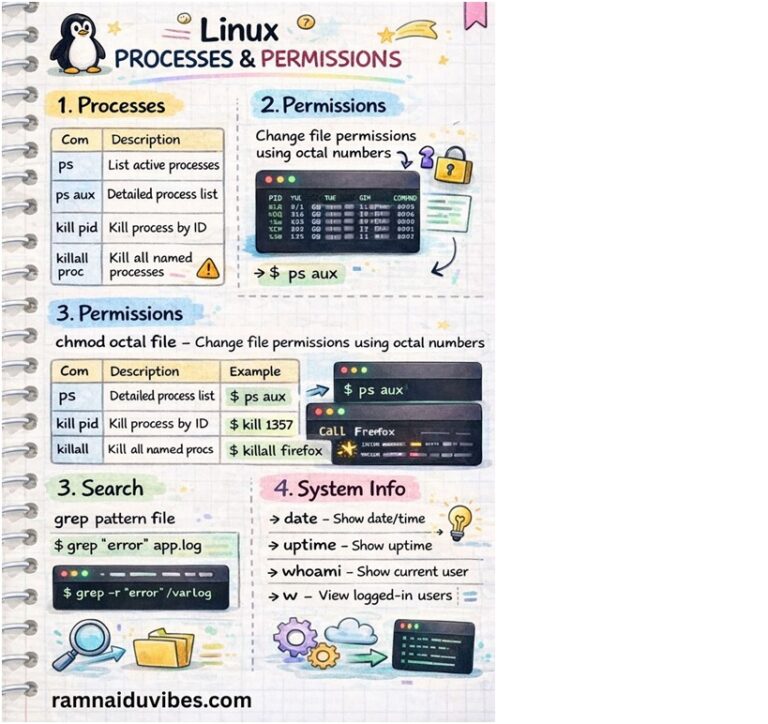
- ps -ef: Shows all running processes.
5. File Permissions (The 4-2-1 Rule)
Linux is secure because of Permissions. If you run ls -l, you see something like -rwxr-xr–. What does that mean?
It’s simple math:
- Read (r) = 4
- Write (w) = 2
- Execute (x) = 1
Example: chmod 777 script.sh
- Owner: 4+2+1 = 7 (Full Access)
- Group: 4+2+1 = 7 (Full Access)
- Others: 4+2+1 = 7 (Full Access)
Warning: Never use 777 in production! It allows anyone to delete your file. Use 755 (Read/Execute for others) instead.
6. Your First Shell Script (Automation)
Shell scripting is just a list of commands saved in a file. Scenario: You want to check the server health every morning. Instead of typing 4 commands, write a script.
- Create the file:
vim health-check.sh
- Write the code:
#!/bin/bash

# The first line is called 'Shebang'. It tells Linux this is a script.

echo "--- Checking Disk Space ---"

df -h

echo "--- Checking Memory ---"

free -g

echo "--- System Uptime ---"

Uptime
3.Give Permission:
chmod 755 health-check.sh
4.Run it:
./health-check.sh
7. Conclusion: Why Freshers Need This
In an interview, they won’t ask “What is Linux?” They will ask: “How do you check a running process?” or “How do you change file permissions?”
If you practice the commands in this blog, you are already ahead of 80% of candidates. Next Step: Open your terminal and type whoami. Welcome to the world of Linux!