
Git vs. GitHub: The Ultimate Beginner’s Guide
Last Updated: February 2026
: Confused? You won’t be after reading this.
Introduction: The Two Most Confusing Words in Tech
When you start learning programming, DevOps, or Cloud, you will hear two words repeatedly: Git and GitHub. Everyone talks about them. Interviewers ask about them. Companies expect you to know them.
But here is the confusion: Are they the same thing? Short answer: No. Long answer: They are like Coffee and a Coffee Shop. Related, but completely different tools doing different jobs.
In this guide, I will break down the differences in simple English so you never get confused again.
1. What Is Git? (The Time Machine)
The Definition: Git is a Version Control System (VCS).
The Trainer’s Explanation: Imagine you are writing a resume. You save it as Resume_Final.docx. Then you make changes and save it as Resume_Final_V2.docx. Then Resume_Really_Final.docx. Eventually, your desktop is a mess of files.
Git solves this. Git tracks every single change you make to a file. It remembers:
- What changed (Added a line, deleted a photo).
- Who changed it (You or your teammate).
- When it was changed.
Think of Git as a Time Machine. If you make a mistake in your code today, Git allows you to “travel back in time” to how your project looked yesterday, last week, or even last year.
- Key Fact: Git works locally on your computer. It does not need the internet.
2. What Is GitHub? (The Social Network for Code)
The Definition: GitHub is a cloud-based hosting service for Git repositories.
The Trainer’s Explanation: If Git is the tool you use on your laptop, GitHub is the website where you upload your work. Think of it like Instagram for developers.
- You take a photo (Write Code) on your phone.
- You edit it (Commit changes) using your phone apps.
- You upload it to Instagram (Push to GitHub) so the world can see it.
Why use GitHub?
- Backup: If your laptop crashes, your code is safe in the cloud.
- Collaboration: Multiple developers can work on the same project from different countries.
- Portfolio: It acts as your Online Resume. Recruiters look at your GitHub profile to see if you can actually code.
- Key Fact: GitHub requires the internet.
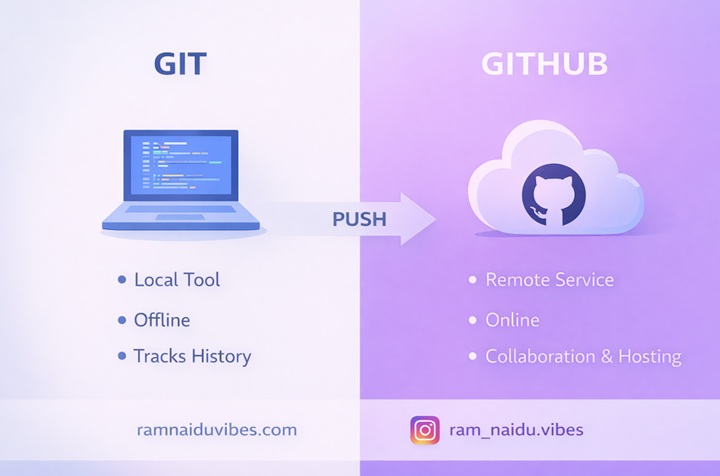
3. Git vs. GitHub: The "Word vs. Google Drive" Analogy
This is the easiest way to remember the difference:
Concept | The Analogy | Real Tech |
The Tool | MS Word | Git |
Where it lives | Your Laptop | Local Computer |
The Storage | Google Drive | GitHub |
The Goal | Writing the doc | Version Control |
The Internet? | Not Needed | Needed |
Summary: You use Git to do the work, and you use GitHub to share the work.
4. Real-Life Example: The "Instagram" Update
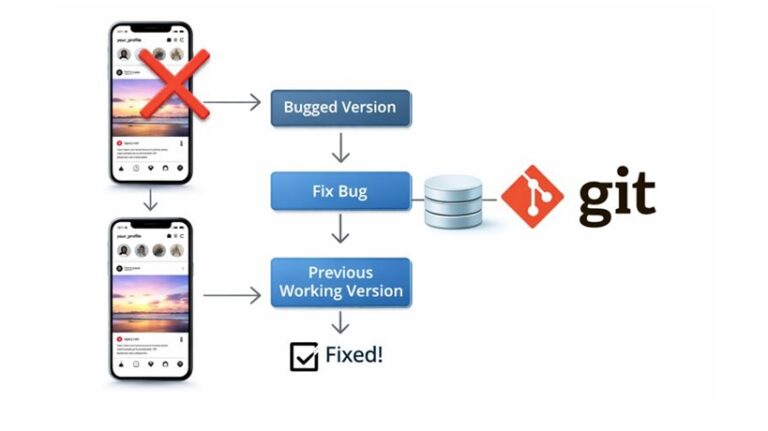
Let’s take Instagram as an example. Instagram releases new updates (Reels, Stories, DMs) regularly. Sometimes, an update might crash the app.
In that case, the Instagram developers do NOT rewrite the whole application again.
- They use Git to go back to the previous working version.
- They fix the bug.
- They release a new version again.
That “safety net” is why every company uses Git.
5. The Basic Workflow (How to Start)
You don’t need to memorize 100 commands. You just need to understand the flow of data.
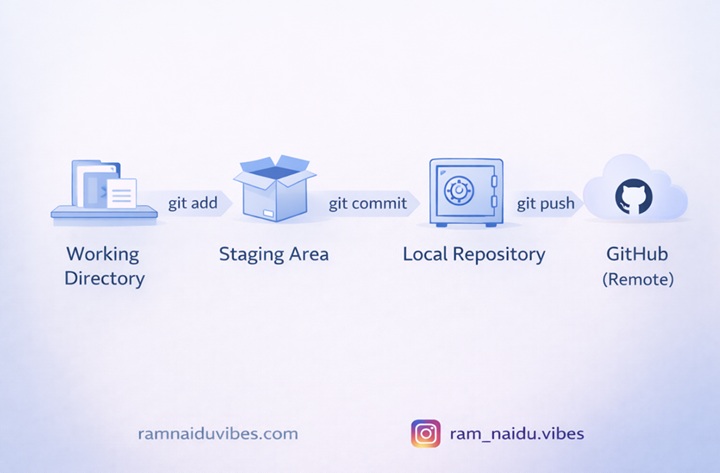
- git init
- What it does: Tells Git, “Start tracking this folder.” It creates a hidden .git
- git add .
- What it does: Moves your changes to the “Staging Area.” It’s like putting a letter in an envelope.
- git commit -m “message”
- What it does: Saves the snapshot. It’s like sealing the envelope.
- git push
- What it does: Uploads your code to GitHub. It’s like dropping the envelope in the mailbox.
6. Why Freshers MUST Learn This
If you go to an interview and say “I know Java” or “I know DevOps” but you don’t have a GitHub profile, the interviewer might doubt you.
GitHub is your proof of work.
- Don’t just say you know coding.
- Upload your projects to GitHub.
- Put the link on your resume.
Hands-On Tutorial: Your First Git Project
Now that you understand the theory, let’s try it practical. You don’t need to be an expert; you just need these 4 commands to start.
Step 1: The Setup
- Download Git: Go to git-scm.com and install it.
- Verify: Open your terminal (or Command Prompt) and type git –version.
Step 2: Initialize (The Start Button)
Create a new folder for your project. Open it in your terminal and type:
git init
This command tells Git, “Start tracking this folder.”
Step 3: The 3 Stages (Memorize This!)
- Working Directory: You write code here.
- Staging Area: You select files to save (git add).
- Repository: You permanently save files (git commit).
Try these commands:
git add . # Moves files to Staging Area
git commit -m “First code” # Saves the snapshot
Step 4: Push to GitHub
- Go to GitHub.com and create a new repository.
Link your folder to GitHub
git remote add origin https://github.com/YOUR-USERNAME/YOUR-REPO.git
- Upload your code:
git push -u origin main
Trainer’s Advice:
“Stop keeping your projects in folders named Project_Final_Final. Create a GitHub account today and push your first code. It is the single best thing you can do for your career.”