
What is AWS EC2? The Ultimate Beginner’s Guide
Last Updated: February 2026
Stop buying laptops. Start renting Supercomputers.
Introduction: The "Expensive Laptop" Problem
Imagine this scenario:
You are a student or a fresher. You want to learn DevOps, host a Website, and run a Java Application.
But you only have one laptop.
- If you install everything, it becomes slow.
- If the OS crashes, you lose your data.
- You can’t keep your laptop on 24/7 to run a website.
Solution: What if you could rent a powerful computer from Amazon for just ₹5/hour, use it, and then delete it?
That is AWS EC2.
1. What is a Virtual Machine (VM)?
Understanding AWS EC2: What is AWS EC2 The Ultimate Beginner's Guide
Before we touch AWS, let’s understand the technology behind it.
A Virtual Machine (VM) is a “Computer inside a Computer.”
The “House” Analogy:
- Physical Server: Think of a big House.
- Virtual Machines: Think of the separate Rooms inside that house.
- The Magic: Each room has its own lock, its own light switch, and its own guest. Even though they are in the same house, they don’t disturb each other.
In technical terms:
- Host: The big physical machine in Amazon’s data center.
Guest: The VM running inside it (Linux, Windows, etc.) that you use.
Real-Life Example of Virtual Machine
Think like this 👇
🏠 Physical Machine = Your house
🧍 Virtual Machines = Separate rooms inside the house
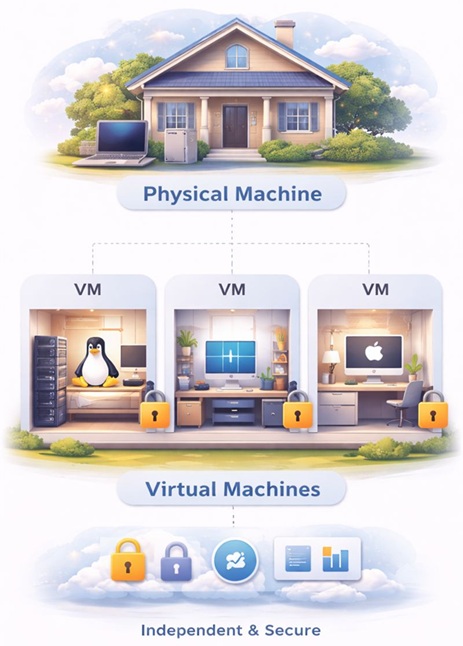
Each room:
- Is independent
- Has its own lock
- Can be used for different purposes
Similarly:
- One physical server
- Multiple virtual machines
Each VM works independently.
2.What is AWS EC2?
EC2 stands for Elastic Compute Cloud.
- Elastic: You can increase or decrease the power (RAM/CPU) anytime.
- Compute: It provides processing power (Brain).
- Cloud: It is hosted on the internet, not in your office.
Why is it called “Elastic”?
Imagine you own a pizza shop.
- Weekdays: Few customers $\rightarrow$ You need 1 Oven (1 Server).
- Sunday: Huge rush $\rightarrow$ You instantly add 4 Ovens (5 Servers).
- Monday: Rush over $\rightarrow$ You return the extra 4 Ovens.
- Result: You never pay for ovens you don’t use. This flexibility is Elasticity.
3. Choosing the OS: What is an AMI?
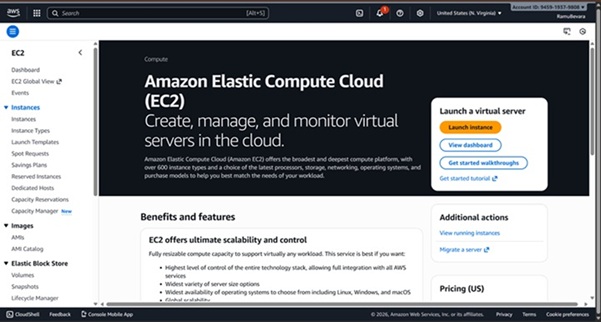
Before you choose the power of your computer, you must choose its Operating System. In AWS, this is called an AMI (Amazon Machine Image).
Think of AMI as the “Software Template.” It decides if your server is a Mac, Windows, or Linux machine.
You will see many options, but here is what you should pick:
- Amazon Linux 2023 (Recommended):
- Why: It is lightweight, secure, and pre-installed with AWS tools.
- Best For: Beginners and AWS-specific tasks.
2.Ubuntu Server (Popular):
- Why: It has the largest community. If you get stuck, Google has the answer.
- Best For: DevOps tools (Docker, Kubernetes)
3.Windows Server:
- Why: It looks like your laptop (Desktop GUI).
- Best For: .NET applications. (Warning: It consumes more RAM).
Pro Tip: Always look for the “Free Tier Eligible” tag under the OS name to avoid charges.
4. The "EC2 Menu Card" (Instance Types)
Now that you have the OS, you need hardware (CPU & RAM). You will see names like t2.micro or m5.2xlarge. Let’s decode them.
The Naming Formula: m5.2xlarge
- m (Class): What is it good for? (e.g., m = General Purpose, r = RAM optimized).
- 5 (Generation): Version number. (Newer is usually better).
- 2xlarge (Size): How big is it? (Micro < Large < XLarge < 2XLarge).
Which one should you choose?
- General Purpose (micro): Best for beginners. Balances Compute, Memory, and Networking.
- Compute Optimized (c5): Good for gaming servers.
- Memory Optimized (r5): Good for big databases.
5. Security Groups: The "Firewall" of AWS
This is the most critical part. If your website isn’t loading, 99% of the time, it’s a Security Group issue.
What is a Security Group?
Think of your EC2 instance as a House. The Security Group is the Guard at the gate.
- By default, the Guard blocks ALL Inbound Traffic (No one can enter).
- By default, the Guard allows ALL Outbound Traffic (You can go out anywhere).
You must give the Guard specific rules (The “Allow List”):
- Port 22 (SSH): Open this to “My IP” only. This is for you to login securely.
- Port 80 (HTTP): Open this to “Anywhere” (0.0.0.0/0). This allows the public to view your website.
6. Storage: EBS vs EFS (Where do I save files?)
Your EC2 instance needs a hard disk. AWS gives you two main options.
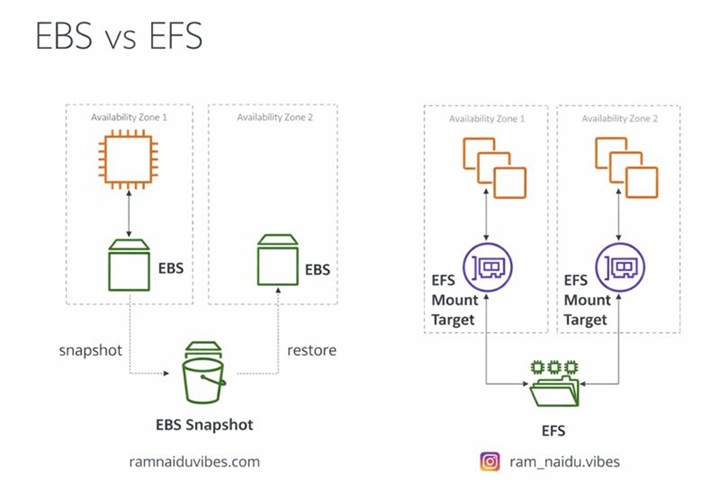
A. EBS (Elastic Block Store) – The “USB Stick”
- What it is: A network drive attached to your instance.
- Key Feature: It can be attached to only one instance at a time.
- Availability: Locked to a specific Availability Zone (e.g., us-east-1a).
- Persistence: If you stop your instance, your data stays safe.
B. EFS (Elastic File System) – The “Shared Folder”
- What it is: A managed Network File System (NFS).
- Key Feature: It can be mounted onto 100s of EC2 instances at the same time!
- Availability: Works across multiple Availability Zones (Multi-AZ).
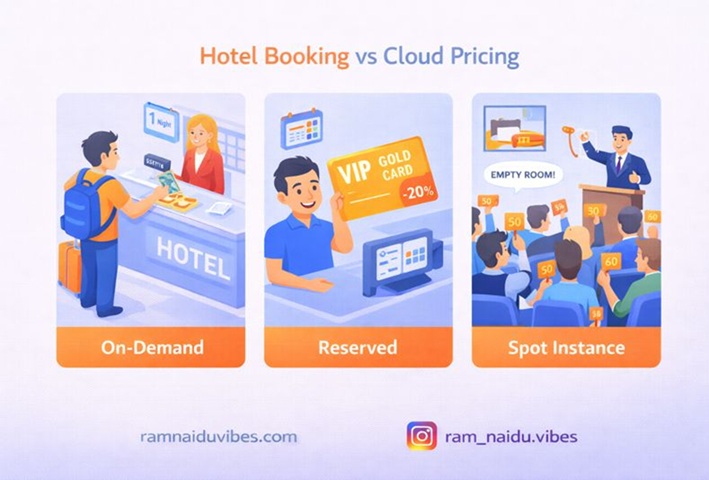
7. Purchasing Options: The "Hotel" Analogy
How do you pay for EC2? It’s exactly like booking a hotel room.
- On-Demand: Walk-in Guest. Pay full price per night. (No commitment).
- Reserved: Planning Ahead. Book for 1 year, get 72% discount.
- Spot Instances: Bidding War. Get 90% discount, but you can be kicked out if a VIP arrives.
- Dedicated Hosts: Book the entire building. Expensive, but private.
Conclusion: Your Server is Ready
Conclusion: Your Server is Ready
You now understand the “Brain” (EC2), the “OS” (AMI), the “Firewall” (Security Groups), and the “Memory” (EBS).
But before you launch one, a quick warning: Most EC2 servers run on Linux. If you launch a server but don’t know the commands to control it, you will be stuck. 👉 Prerequisite: Master the basics with our Linux Commands for Cloud Engineersguide.
Ready to Build? In our next blog, we will give you a complete Step-by-Step Guide to launching your first Free Tier EC2 instance and connecting to it using SSH.