How to Launch Your First AWS EC2 Instance (Free Tier) & Connect Securely
Last Updated: February 2026
A Step-by-Step Guide to Creating a Virtual Server and Connecting via Windows 11 & Web.
Introduction: Your First Server in the Cloud
In our Cloud Roadmap, we learned that EC2 (Elastic Compute Cloud) is the backbone of AWS. It allows you to rent a virtual computer (Server) somewhere in an Amazon data center.
Today, we will stop talking and start building. We will launch a Linux Server for free (using the AWS Free Tier), understand the mystery of Key Pairs, and connect to it using two methods:
- Directly from the Browser (Easiest).
- From Windows 11 Terminal (Professional way).
Step 1: Launching the Instance (The Setup)
Log in to your AWS Console and search for “EC2”. Click “Launch Instance”.
- Name Your Server:
- Give it a name like My-First-Web-Server.
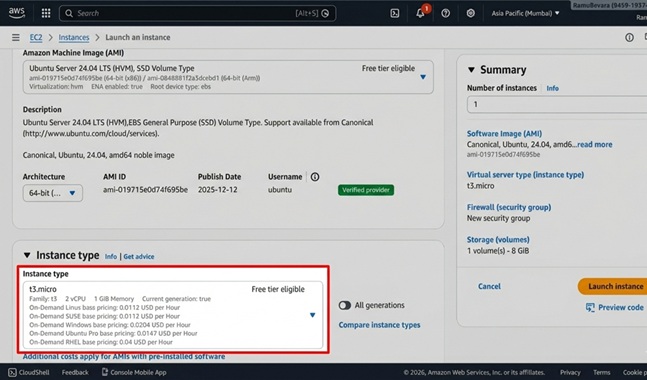
- Choose an AMI (Operating System):
- Select Amazon Linux 2023 or Ubuntu.
- Make sure it says “Free Tier Eligible”.
- Choose Instance Type:
- Select micro or t3.micro.
- These provide 1 CPU and 1 GB RAM, which is free for the first 12 months (750 hours/month).
Step 2: The Key Pair (The Most Critical Part)
Beginners often skip reading this and get locked out of their server. Read carefully!
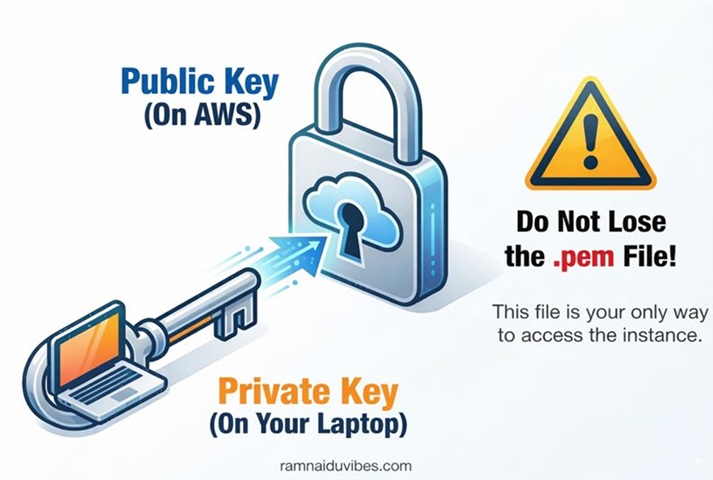
AWS servers do not use passwords by default. They use Cryptography Keys.
- Public Key: Stored on the AWS Server (The Lock).
- Private Key: Stored on your Laptop (The Key).
How to Create One:
- Click “Create new key pair”.
- Key pair name: Enter my-aws-key.
- Key pair type: Choose RSA.
- Private key file format:
- Choose .pem (Best for Windows 10/11 PowerShell, Mac, and Linux).
- Note: In the past, we used .ppk for PuTTY, but Windows 11 now has built-in SSH, so .pem is better.
- Click Create key pair.
- IMPORTANT: A file (my-aws-key.pem) will download. Save this safely! If you lose it, you can never access your server again.
Step 3: Network Settings (The Firewall)
We need to allow traffic to enter our server.
- Under Network Settings, make sure “Allow SSH traffic from” is checked.
- Select “My IP” (This restricts access so only your computer can connect. It is safer than “Anywhere”).
Click “Launch Instance”. Congratulations! Your server is running.
Step 4: Connecting to Your Server
Now that the server is running, how do we control it?
Method A: EC2 Instance Connect (The Easiest Way)
This works directly in your browser. No software needed.
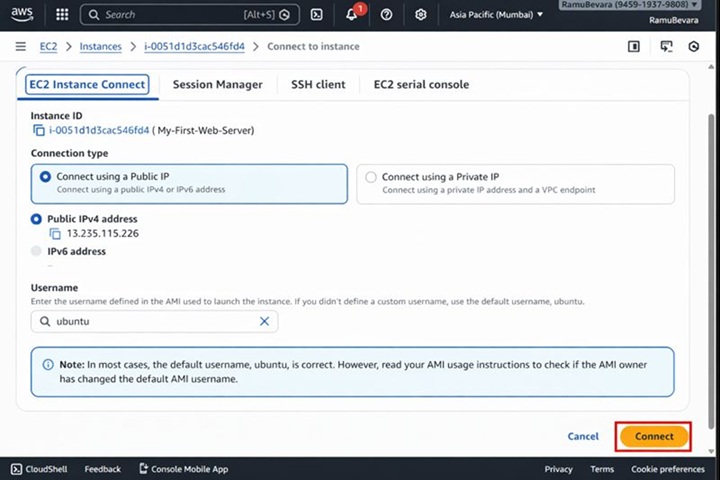
- Select your instance in the dashboard.
- Click the “Connect” button (Top right).
- Select the “EC2 Instance Connect” tab.
- Click Connect.
- A black window will open in your browser. You are now inside your Linux server!

Method B: SSH from Windows 11 (The Pro Way)
Windows 10 and 11 now come with a built-in SSH client, just like Mac and Linux. You don’t need PuTTY anymore.
- Open Command Prompt (CMD) or PowerShell on your computer.
- Navigate to the folder where you downloaded your key (e.g., cd Downloads).
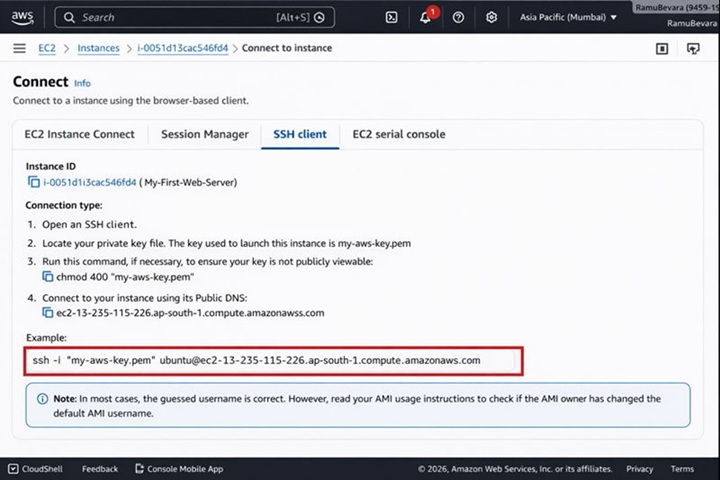
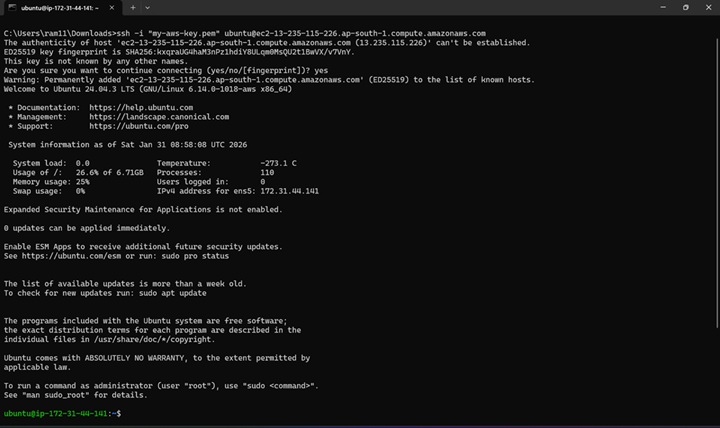
Go to your AWS Console, click Connect, then “SSH Client” tab. Copy the command shown there. It looks like this:
ssh -i “my-aws-key.pem” ec2-user@ec2-34-201-11-22.compute-1.amazonaws.com
- Paste that command into your PowerShell and hit Enter.
- Type yes if it asks “Are you sure you want to continue connecting?”.
Result: You will see the AWS bird logo (ASCII art). You are connected!
Method C: Alternatives (PuTTY & MobaXterm)
If you prefer a graphical tool, you can use:
- PuTTY: The classic tool. Cons: You must convert your .pem key to .ppk using a tool called PuTTYgen.
MobaXterm: A modern, feature-rich terminal. It has a built-in file uploader which is very handy.
Conclusion: You Are Now an Admin
You have successfully rented a computer in the cloud and logged into it. Currently, this server is empty. It’s just a blank Linux machine.
In our next blog, we will turn this empty server into a Web Server and host your own HTML website for the world to see.
👉 Read Next: Installing Apache Web Server & Hosting Your First Site
Key Takeaway for Interviews
“Why do we use Key Pairs?” We use them because passwords can be guessed or stolen. SSH Keys use Asymmetric Encryption (A mathematical lock and key), which is virtually impossible to hack.